> ## Documentation Index
> Fetch the complete documentation index at: https://waybeyond.mintlify.site/llms.txt
> Use this file to discover all available pages before exploring further.
# Why is my Folium not connecting?
> Troubleshoot Folium and gateway connection issues when sensor data is not appearing in FarmRoad.
If your Folium, gateway, and dashboard are set up correctly, you should see live data in your Current Readings table, heat map, and graphs. If Folium data is not appearing in your FarmRoad account, work through the checks below.
## 1. Check the Folium sensor
1. Make sure the antenna is securely attached.
2. Press the power button. It should light up green if there is still battery life.
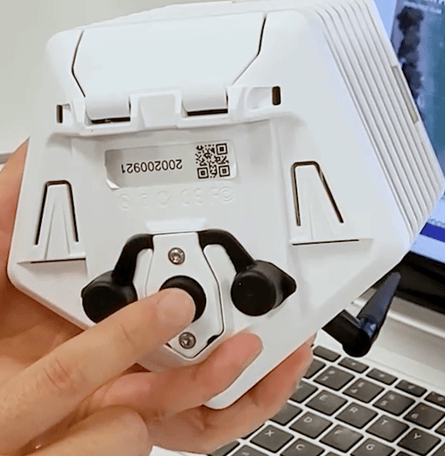 3. If the sensor does not light up green, replace the batteries.
4. Wait a couple of minutes, then refresh your browser and check your dashboard again.
If the sensor still does not appear, continue to the gateway checks (step 2 below).
## 2. Check the gateway
1. Check that the gateway is powered on. A solid red light and a flashing green light should be showing at the top of the gateway.
3. If the sensor does not light up green, replace the batteries.
4. Wait a couple of minutes, then refresh your browser and check your dashboard again.
If the sensor still does not appear, continue to the gateway checks (step 2 below).
## 2. Check the gateway
1. Check that the gateway is powered on. A solid red light and a flashing green light should be showing at the top of the gateway.
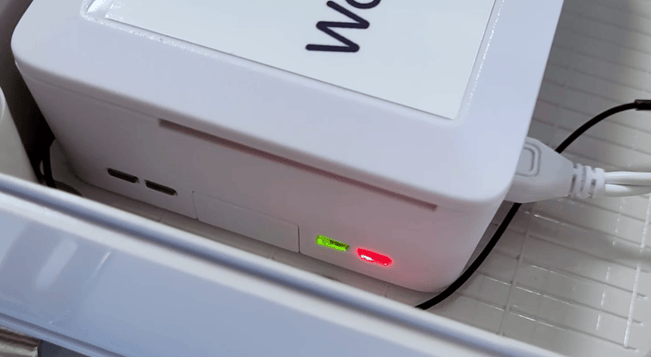 2. Make sure the Ethernet/LAN cable is connected properly. You should also see green and orange lights where the Ethernet cable connects to the gateway.
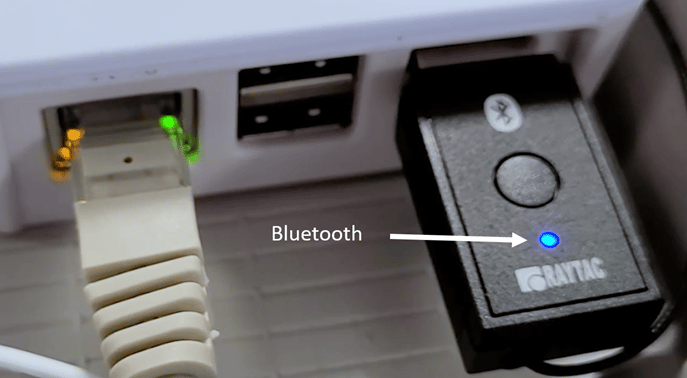
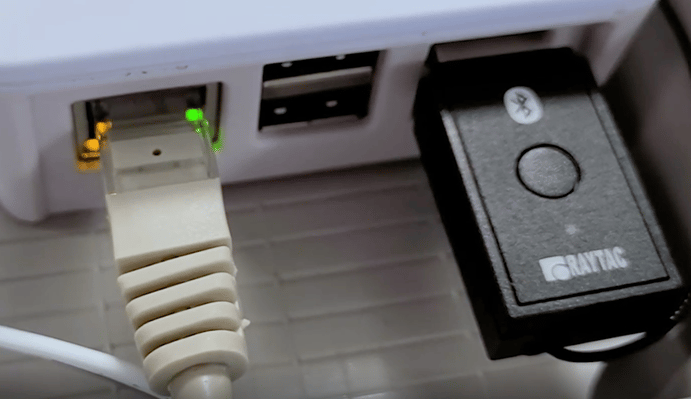 3. Check that Bluetooth is working. The blue light on the Bluetooth dongle should flash every few seconds.
 4. Make sure the gateway antenna is twisted on properly.
5. Refresh your browser after a couple of minutes and check your dashboard again.
If the data still does not appear, check whether the issue is related to range (step 3 below).
## 3. Check the range between the gateway and Folium
If the sensor and gateway both appear to be working, the issue may be the distance between the gateway and the Folium sensor.
1. Bring the Folium back to where the gateway is located, ensuring there is nothing in between the Folium and the gateway that could block the signal.
2. Press the power button on the Folium sensor.
3. Wait a couple of minutes, then refresh your browser and check your dashboard again.
4. If this solves the problem, you will need to relocate your Folium to be closer to the gateway or adjust the placement to improve the signal range.
For more information, see [How to optimize your Folium-Gateway signal range](https://waybeyond.mintlify.app/en/farmroad/folium-sensor-gateway-signal-range)
## Still not working?
If the steps above do not resolve the issue, please contact WayBeyond Support.
4. Make sure the gateway antenna is twisted on properly.
5. Refresh your browser after a couple of minutes and check your dashboard again.
If the data still does not appear, check whether the issue is related to range (step 3 below).
## 3. Check the range between the gateway and Folium
If the sensor and gateway both appear to be working, the issue may be the distance between the gateway and the Folium sensor.
1. Bring the Folium back to where the gateway is located, ensuring there is nothing in between the Folium and the gateway that could block the signal.
2. Press the power button on the Folium sensor.
3. Wait a couple of minutes, then refresh your browser and check your dashboard again.
4. If this solves the problem, you will need to relocate your Folium to be closer to the gateway or adjust the placement to improve the signal range.
For more information, see [How to optimize your Folium-Gateway signal range](https://waybeyond.mintlify.app/en/farmroad/folium-sensor-gateway-signal-range)
## Still not working?
If the steps above do not resolve the issue, please contact WayBeyond Support.