> ## Documentation Index
> Fetch the complete documentation index at: https://waybeyond.mintlify.site/llms.txt
> Use this file to discover all available pages before exploring further.
# How can I onboard a Folium/FarmRoad sensor device?
> Follow the steps below to connect a Folium or FarmRoad sensor in FarmRoad.
## Connect FarmRoad / Folium sensor
1. In FarmRoad, click the **Manage sensors** icon in the navigation menu.
2. Click **Add a sensor**.
 3. Enter the serial number, or serial numbers, for the sensor you want to connect.
4. Click **save**.
The Folium's serial number is printed on the bottom of the device.
## Add or edit sensor details
1. Click the **Manage sensors** icon in the navigation menu.
2. Click the **Edit** pencil icon for the device you want to update.
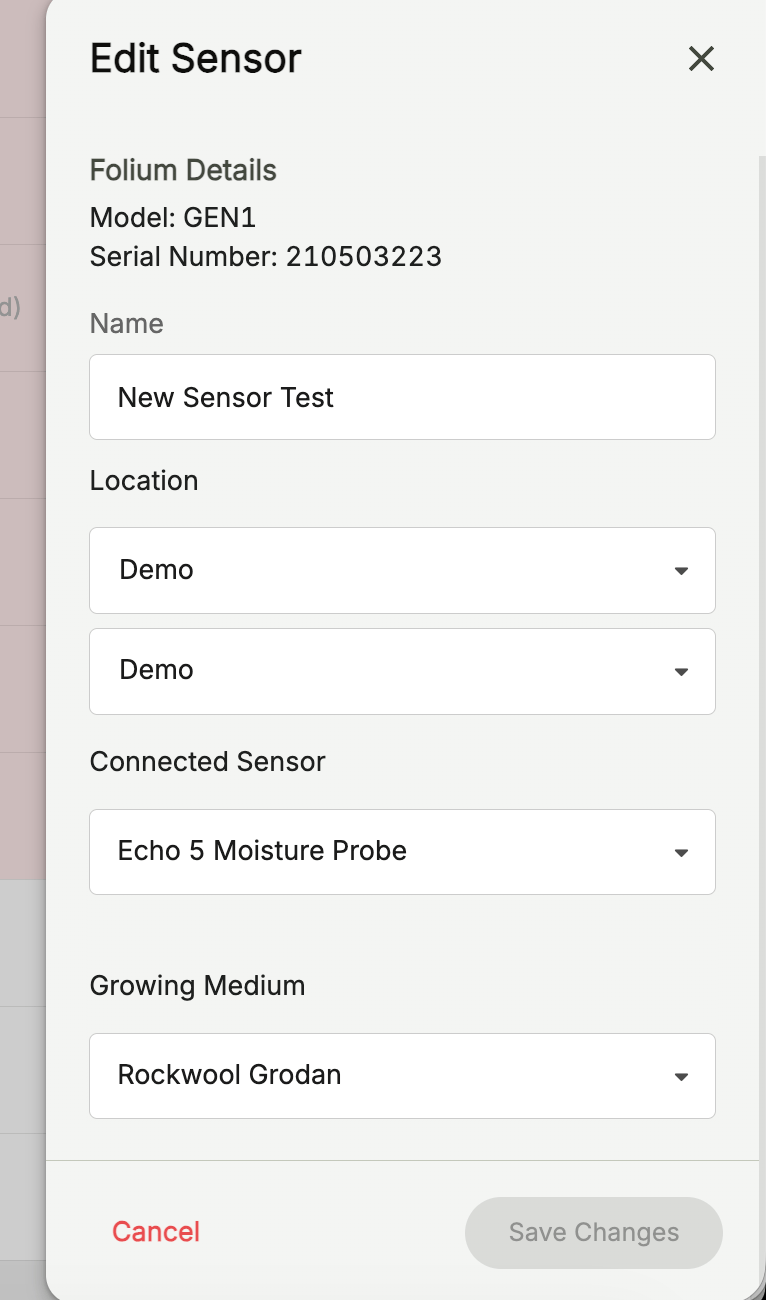
3. Enter a **Name**.
4. Enter a **Location**.
5. If required, select a peripheral for the sensor.
For an **Echo 5 Moisture Probe**, you must also select a substrate.
3. Enter the serial number, or serial numbers, for the sensor you want to connect.
4. Click **save**.
The Folium's serial number is printed on the bottom of the device.
## Add or edit sensor details
1. Click the **Manage sensors** icon in the navigation menu.
2. Click the **Edit** pencil icon for the device you want to update.
3. Enter a **Name**.
4. Enter a **Location**.
5. If required, select a peripheral for the sensor.
For an **Echo 5 Moisture Probe**, you must also select a substrate.